
1. Create an account and check your storage
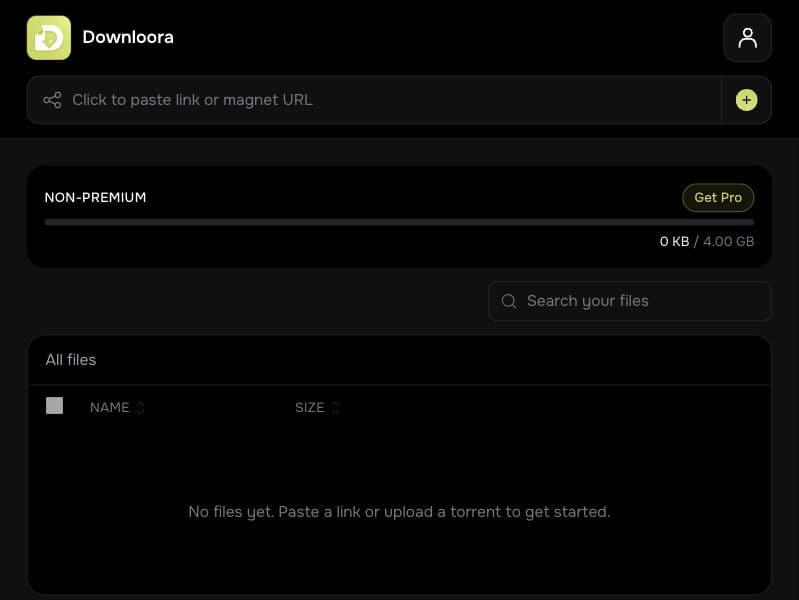
Create a free account or sign in, then open your file library. The storage meter shows your used space and total allowance. New accounts begin with 4 GB.
Make sure there is room for the torrent before starting. If your library is full, delete files you no longer need or choose a larger storage plan.
2. Add a magnet link or upload a torrent
Paste your magnet link into the field at the top of the library. Pasting a supported link starts the import. Clicking an empty field can read your copied link when your browser allows clipboard access.
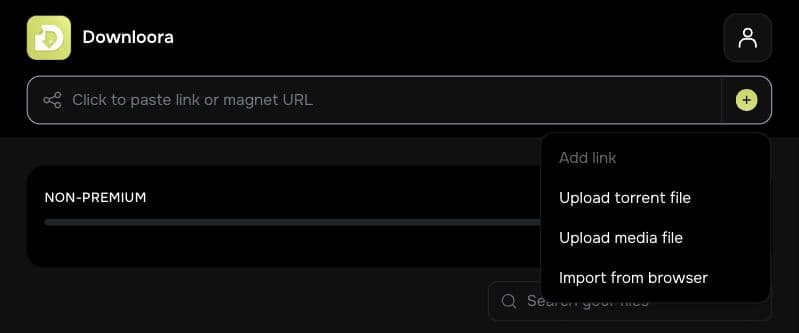
For a .torrent file, open the plus menu and choose Upload torrent file. Select the file from your device. Use a magnet or torrent for content you own or have permission to download.
3. Follow the download progress
The Downloads area shows the transfer’s state and progress. Metadata discovery, downloading, and saving may take time depending on the source and size.
If a transfer fails, read its error message and check the source and available storage. You can cancel an active transfer from the library.
4. Browse the completed folder
When files become available, open the torrent folder to see its contents. Downloora preserves folders and subfolders rather than putting every file into one flat list.
Use the search field to find a file. Open a supported video or audio file to preview it, or use its download action to save it to your device.
5. Download a file or folder ZIP
Download an individual file when you only need one item. For the full collection, use the folder’s download action to create a ZIP archive after saving has finished.
Keep a local copy of files you want before deleting them from your cloud library. Deleting a folder removes its contents and frees the space they used.
Frequently asked questions
What is the difference between a magnet and a .torrent file?
A magnet link identifies a torrent using a URL. A .torrent file contains torrent metadata. Downloora accepts both through the link field or file upload menu.
Why is my torrent taking time?
Metadata discovery and transfers depend on source availability, file size, and network conditions. A torrent without an available source may not complete.
Why is the folder ZIP not available yet?
The full folder archive is available after saving finishes. Check the download status before trying the folder download again.
Put your next download in its place.
Create a free account with 4 GB of storage, or sign in to open your library.
Get started free